![green house sales and marketing.png]](https://kb.greenhouseuvu.com/hs-fs/hubfs/green%20house%20sales%20and%20marketing.png?height=35&name=green%20house%20sales%20and%20marketing.png)
You'll find that the media inside of Elementor can quickly get messy! Adding this plugin will make it so that you can better organize your photos, locate images in the future, and replace images very easily.
You could even use it to organize your web pages in the future if you want!
Here's how you add it:
Step 1:
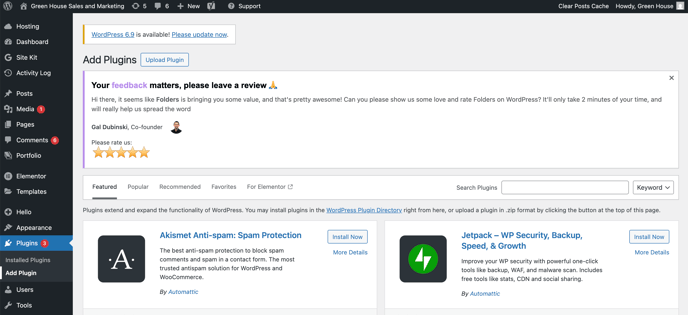
In WordPress, go to "Plugins" > "Add Plugin"
Step 2:
Search for Folders By Gal Dubinski
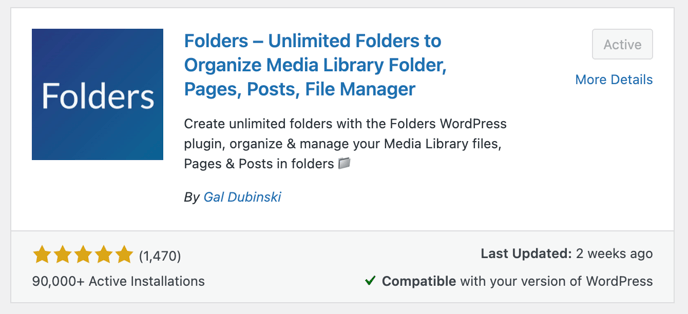
Click "Install Now" and "Activate"
Instructions to use the plugin:
Go to the media tab, and you should now see a new tab bar on the left side of your screen with a little pink tab that you can use to open and close it.
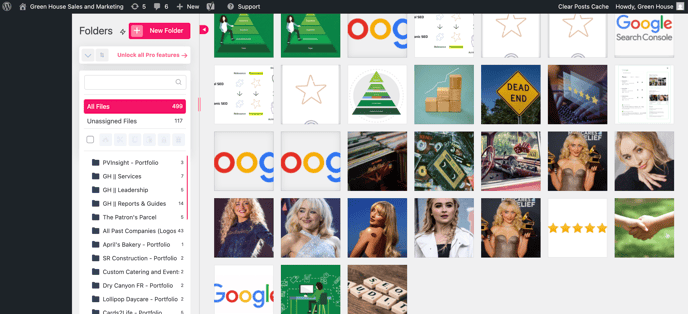
Create a new folder, and simply drag your photos into the newly created folder. You can select multiple images and drag them in bulk. With the free version, you are not allowed to create folders inside of each other. If you think it would be useful to your client, you can create a naming system. For example, on Green House's website, we have folders for each client to organize their portfolio content. I named these folders "[company name] || portfolio" so that I can search "portfolio" and all of the folders will show up in my search.
My favorite feature of this plugin is that you now have the ability to replace images on the website hassle free. Instead of uploading a new file and deleting the old file, simply click on the image you need to replace, and scroll down until you see "Upload a new file". Upload your file and click "Replace".

You have just replaced this file in every spot on your website that it was being used! It will also keep the alt text of the image of the origional image.
Note: As we are well aware, Elementor will like to be glitchy, especially in the editor view. To verify that your change worked, view the website live and refresh a couple times. The image should be replaced.